VMware Migration of VMs and RDMs from VNX to XtremIO – Part 2

sancopy-xtremio

In continuing with part 2 of this series, I’m going to discuss zoning requirements for SANcopy on the XtremIO. To recap before we begin, I have a VMware environment that I am migrating from VNX to XtremIO. Most of this environment can be migrated via storage vMotion to the XtremIO. However, there are quite a few of VMs that have physical mode RDMs that need to be migrated via SANcopy. We chose SANcopy over Open Migrator because these following reasons:

  • SANcopy enabler is installed on the source VNX
  • SANcopy will require one outage to shutdown the server on time of cutover
  • SANcopy is array-based and would not impact the host CPU
  • Open Migrator is only supported for Microsoft Windows Server
  • Open Migrator requires three reboots to migrate (one to attach filter driver to source and target drives, two to actually cutover one drives are in sync, and three to uninstall the software)

First things first; we need to zone our target XtremIO to the source VNX. With following EMC Best Practices, we will create 1-to-1 zones on each Fabric for SP A and SP B ports to two controllers.

Fabric A

Zones Source VNX Target XtremIO
Zone 1 SP A-port 5 X1-SC1-FC1
Zone 2 SP A-port 5 X1-SC2-FC1
Zone 3 SP B-port 5 X1-SC1-FC1
Zone 4 SP B-port 5 X1-SC2-FC1
* SP A-port 5 and SP B-port 5 are connected to Fabric A in my environment*

Fabric B

Zones Source VNX Target XtremIO
Zone 1 SP A-port 4 X1-SC1-FC2
Zone 2 SP A-port 4 X1-SC2-FC2
Zone 3 SP B-port 4 X1-SC1-FC2
Zone 4 SP B-port 4 X1-SC2-FC2
* SP A-port 4 and SP B-port 4 are connected to Fabric B in my environment*

You should end up with zones that look something like this:

zone name XIO3136_X1_SC1_FC2_VNX5500_SPA_P4 vsan 200
member fcalias XIO3136_X1_SC1_FC2
member fcalias VNX_SPA_P4
exit
zone name XIO3136_X1_SC2_FC2_VNX5500_SPA_P4 vsan 200
member fcalias XIO3136_X1_SC2_FC2
member fcalias VNX_SPA_P4
exit
zone name XIO3136_X1_SC1_FC2_VNX5500_SPB_P4 vsan 200
member fcalias XIO3136_X1_SC1_FC2
member fcalias VNX_SPB_P4
exit
zone name XIO3136_X1_SC2_FC2_VNX5500_SPB_P4 vsan 200
member fcalias XIO3136_X1_SC2_FC2
member fcalias VNX_SPB_P4
exit

Yes… yes… I know I used the acronym XIO (XIO is not XtremIO) for my fcalias and zone names. Sorry! 🙂

You can choose to split this across multiple bricks if you have more than one brick in your XtremIO cluster. Even though, you really only need to zone one storage controller at a minimum, we are choosing to zone two controllers and will split the SANcopy sessions across the two controllers to balance out the load.

Once we have our zoning in place, we should now see the VNX visible from the XtremIO. You can view this in the CLI by issuing the show-discovered-initiators-connectivity command or in the GUI by creating a new initiator group for the VNX and selecting the drop down to show the SP A and SP B WWPNs. Create a new initiator group on the XtremIO for the VNX and map the target volumes for the SANcopy session to this initiator group. Take note of the HLU you assigned to the volume mapping and also the target FC ports on the XtremIO you zoned to the VNX.

xmcli (admin)> show-discovered-initiators-connectivity
Discovered Initiator List:
Cluster-Name Index Port-Type Port-Address Num-Of-Conn-Targets
ATLNNASPXTREMIO01 1 fc 50:06:01:61:08:60:10:60 2
ATLNNASPXTREMIO01 1 fc 50:06:01:62:08:60:10:60 2
ATLNNASPXTREMIO01 1 fc 50:06:01:64:3e:a0:5a:ed 2
ATLNNASPXTREMIO01 1 fc 50:06:01:65:3e:a0:5a:ed 2
ATLNNASPXTREMIO01 1 fc 50:06:01:69:08:60:10:60 2
ATLNNASPXTREMIO01 1 fc 50:06:01:6a:08:60:10:60 2
ATLNNASPXTREMIO01 1 fc 50:06:01:6c:3e:a0:5a:ed 2
ATLNNASPXTREMIO01 1 fc 50:06:01:6d:3e:a0:5a:ed 2
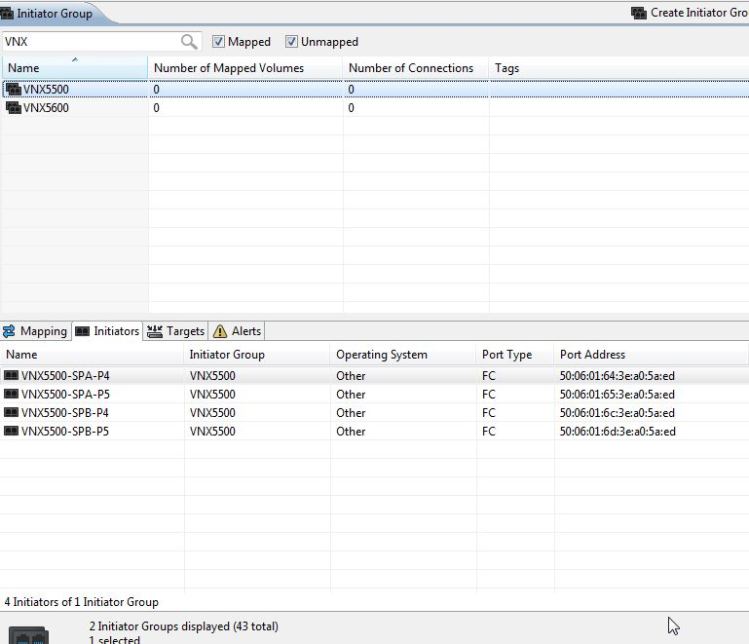
sancopy-xtremio-2.jpg

The next part of this guide will discuss what is needed on the VNX source before SANcopy sessions can be created. We are going to talk about reserved LUN pool, requirements around that, and creating the SANcopy session itself. Stay tuned!


XtremIO – Tagging via CLI

Whether you are new to XtremIO or a community expert, this guide is for you! With the introduction of 4.0 code, the EMC XtremIO team introduced a new concept to manage your inventory called tagging. For those with prior 4.0 code experience, this new tagging feature replaces the folders for management concept and provides for more robust inventory management and reporting.

I worked with a customer recently who has well over 200+ volumes that were not tagged or grouped in any way. The ask of me was, how do they tag in bulk via CLI to accomplish this? This is fairly easy, but it does require a bit of trial and error as the XtremIO CLI does not provide code syntax examples as you may be familiar with on the VNX or other EMC storage arrays.

First, we need to define what we want to tag (volumes, initiator groups, etc.) Next, we see how the CLI structure/syntax is for tagging by simply issuing the create-tag command.

xmcli (admin)> create-tag
Description: Creates a new Tag object.
Usage: create-tag property=value list

PROPERTY |MANDATORY |DESCRIPTION |VALUE
======== |========= |=========== |==================
entity |Yes |Entity |string
tag-name |Yes |Tag Name |full path tag name

Next, we need to see how do we declare a volume tag or an initiator group tag as the above shows us that the tag “entity” is a string value. To show you this, I did not complete the command and I used an incorrect string value of “volumes”.

xmcli (admin)> create-tag entity=”volumes”
Description: Creates a new Tag object.
Usage: create-tag property=value list

PROPERTY |MANDATORY |DESCRIPTION |VALUE
======== |========= |=========== |==================
entity |Yes |Entity |string
tag-name |Yes |Tag Name |full path tag name

** Error: Command Syntax Error: entity property must have one of the following values: [InfinibandSwitch, DAE, Initiator, BatteryBackupUnit, Scheduler, StorageController, DataProtectionGroup, X-Brick, Volume, Cluster, InitiatorGroup, SSD, SnapshotSet, ConsistencyGroup, Target]

Now, we are cooking with gas and have something work with here. I want to create a nested volume tag that is something like this: VMware ESXi Hosts > Production Cluster

The nested volume tag will help me to filter based on my VMware hosts to see all hosts and also I can group them by their VMware cluster name as well. The environment I am managing is a mixture of VMware ESXi, RHEL, and AIX so this nested tag is extremely helpful with this. Now, let’s create our tag.

xmcli (admin)> create-tag entity=”Volume” tag-name=”IBM AIX Hosts/Oracle”
Created Tag /Volume/IBM AIX Hosts/Oracle

xmcli (admin)> create-tag entity=”Volume” tag-name=”VMware ESXi Hosts/Boot LUNs”
Created Tag /Volume/VMware ESXi Hosts/Boot LUNs

Now, I am ready to tag my volumes in bulk. I took a show-volumes dump from the XtremIO CLI, saved it to a text file, and imported it into Excel as text data fixed width. Using the volumes column and some Excel CONCATENATE magic, I have my script ready to tag all my volumes in bulk.

tag-object entity=”Volume” entity-details=”ATLNNAVPESXIP01_BOOT” tag-id=”/Volume/VMware ESXi Hosts/Boot LUNs”

As you will find out, the CLI isn’t exactly helpful with how the syntax should be. Think of tags like folders within a unix directory (the XMS is centOS after all).

xtremio-tagging-1.jpg

I hope this has proved to be somewhat useful to you as I noticed that XtremIO CLI syntax questions is often a hot topic within the EMC Communities forum.

VMware Migration of VMs and RDMs From VNX to XtremIO – Part 1

In today’s digital age with virtualization leading the way, you will often find yourself in a situation dealing with VMs and RDMs. RDMs are Raw Device Mappings and it is a way to present a physical LUN to a VM directly as if it was accessing direct-attached storage. Often what proves to be a daunting task is the ability to migration these RDMs that are attached to VMs. I’m going to discuss how to identify which VMs have RDMs, which storage array they belong to, and map it back to the physical LUN on that storage array.

  • The first thing you will want to do is to scan vCenter for VMs with RDMs
    • You will need read access to vCenter and you should have VMware powerCLI installed on your desktop
    • Connect to vCenter through powerCLI
      • Connect-VIServer yourvcenterhostname.domain.local
    • Run a get-VM script selecting the VM hostname, raw device, NAA ID, and hard disk number
      • Get-VM | Get-HardDisk -DiskType “RawPhysical”,”RawVirtual” | Select Parent,Name,DiskType,ScsiCanonicalName,DeviceName | format-table | Out-File –FilePath “out-file-location-on-your-terminal”
  • Once the script completes, you should have a text file that can be imported into excel as text data delimted or fixed width
  • Use the data filter and sort by NAA or SCSIcanonicalname
  • Use this and the source array collects or logs to compare and identify which pertain to your migration
    • In my example, I am migrating from a VNX to XtremIO. I will be using the SCSI Canonical Name and comparing that to the LUN UID/WWN from the SP collect

Example:

RDMs-list.jpg

Once you have identified the VMs in the list that pertain to your migration, you are now ready to begin planning next steps. In my scenario, I am migrating VMs residing on a VNX to a XtremIO. There is a mixture of Virtual and Physical RDMs which means that along with Storage vMotion, I will be using SANcopy to create incremental sessions and pushing the physical RDMs to the XtremIO.

Other tools such as Open Migrator and PPME (if PowerPath is present) can be used as an alternative host-based migration approach, but each tool as its caveats and may still require a reboot to cut over. I will discuss SANcopy from VNX to XtremIO in a future post.

Mounting a NFS share from Exagrid to a VMware host

After endlessly searching through Google (by endlessly I mean various searches with only scanning the first or second page and spending roughly about 2 – 3 minutes on each page), we bit the bullet and called Exagrid support to assist us with mounting a NFS share in VMware. This is what I learned from that experience.

  • By default, Exagrid uses NFSv4 when using the directory path serverIPaddress:/NFSshare
  • To mount this in VMware you need to force it to use NFSv3
  • When trying to mount the share using simply /Backup we were receiving the following error:
    • NFS mount ip-address:mountpoint failed: The mount request was denied by the NFS server. Check that the export exists and that the client is permitted to mount it.

To mount the NFS share in VMware use the following path pre-fix in front of your share:

  • /home1/shares/
    • Example: my NFS share in Exagrid is Backup, so in VMware my path will be: /home1/shares/Backup

You should see that VMware is able to successfully add the NFS share as a datastore.

mapping-to-exagrid