

 Written by
For most of its life, Azure Local (and Azure Stack HCI before it) meant one thing: hyperconverged. Compute and storage lived in the same box, and Storage Spaces Direct (S2D) glued it together. That model works, but if you need more capacity you buy more nodes, whether you need the CPU and memory or not.
That has changed. Azure Local now supports disaggregated deployments, where the cluster nodes run compute only and storage comes from an external SAN over Fibre Channel or iSCSI. On the Dell side, Dell Private Cloud can now deploy Azure Local on PowerEdge compute with PowerStore storage, orchestrated by the Dell Automation Platform. I spend most of my days in Azure Local validation on Dell PowerEdge hardware, so in this post I want to walk through how the pieces fit, what you need before you start, and how I validate the results with PowerShell.
Why disaggregated?
Microsoft’s disaggregated overview sums it up: a disaggregated instance runs from a single machine up to 64 machines using SAN storage, still managed from the Azure portal through Azure Arc, with the same Azure Local VM, AKS, and Azure Virtual Desktop services you get on hyperconverged.
The reasons we hear most from customers:
- Scale compute and storage independently
- Add PowerStore capacity without adding Azure Local nodes, or add nodes without buying disks you don’t need.
- Reuse SAN investments and skills
- Plenty of shops already run Fibre Channel fabrics and have storage teams who know them well.
- Get storage services off the hosts
- As Dell puts it in their Sovereign Private Cloud post, offloading storage services to PowerStore frees host CPU and memory that S2D would otherwise use.
- Larger clusters
- Hyperconverged tops out at 16 nodes; disaggregated goes to 64.
Architecture overview
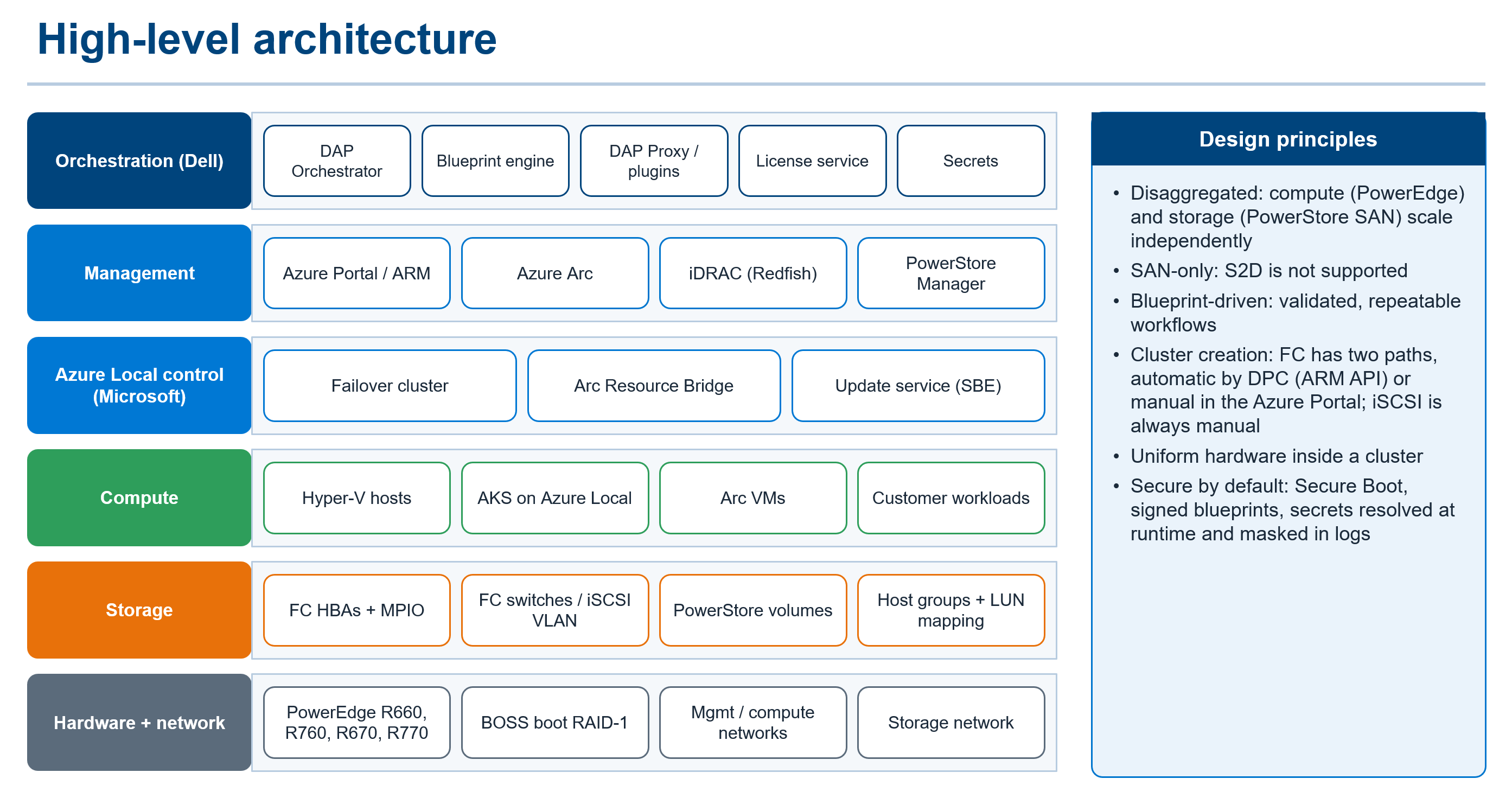
There are three layers here, and it helps to keep them separate in your head.
Azure Local (Microsoft)
Compute nodes from the Azure Local Catalog connect to the SAN. Per the disaggregated network patterns, each node needs at least four network ports: two for the management and compute intent, and two for the cluster networks, which are standalone ports without a Network ATC intent. With FC, storage traffic stays on the FC fabric. With iSCSI, it runs on dedicated adapters and a dedicated iSCSI fabric. Microsoft publishes three patterns: FC without a backup network, FC with a backup network, and an iSCSI 6-NIC pattern.
Dell Private Cloud
Dell Private Cloud is a software subscription that ties together Dell storage, Dell PowerEdge compute, and your own cloud OS license, in this case Azure Local. PowerStore is the “platform-integrated” storage option, with automated deployment and lifecycle workflows.
Dell Automation Platform (DAP)
This is the control plane and orchestrator. Per the Dell Private Cloud Tech Book, you pick a Dell Private Cloud offer from the DAP catalog, which loads its blueprints into the orchestrator: cluster deployment, cluster expansion, node reclaim, and node restore. Blueprints are TOSCA-based YAML templates that Dell validates (Blueprint Quick Start Guide).
Prerequisites
Storage
Microsoft’s supported SAN solutions list the Dell PowerStore family (T and Q appliances) running PowerStoreOS 3.0 or later, over both FC and iSCSI. PowerMax isn’t on that list as I write this. PowerFlex is a different story: Microsoft documents it as a software-initiator option for external storage alongside S2D, not as a SAN array for disaggregated.
PowerStore in DAP
Per Dell’s PowerStore onboarding docs:
- PowerStore T/Q on 3.0 or later, with initial configuration done and management and host networks configured. Software updates through DAP need PowerStore 4.0.0 or later.
- A local PowerStore account with the Storage Administrator role for DAP.
- A SaaS-based DAP orchestrator instance.
- OXY installed and able to reach PowerStore management on every node and appliance, and the DAP orchestrator over the internet using NATS.
- PowerStore credentials stored as a secret in the orchestrator.
Azure Local
All the usual items still apply: an Azure subscription with deployment permissions, AD preparation (or local identity), and DNS. For disaggregated specifically, plan two LUNs before deployment: an infrastructure LUN of at least 250 GB and a performance history LUN of at least 20 GB. Per the OS install guide for disaggregated, the nodes must see those LUNs before Arc registration, and you must not initialize them, because deployment expects RAW disks.
Here’s a look at the PowerEdge models supported as of this writing for the Dell Private Cloud for Microsoft Azure Local solution:
| Generation | Model |
| 17G | PowerEdge R770 |
| 17G | PowerEdge R670 |
| 16G | PowerEdge R760 |
| 16G | PowerEdge R660 |
Source: Microsoft-Azure-Local-on-Dell-Private-Cloud-Support-Matrix
Deployment flow through Dell Automation Platform
At a high level, the documented DAP flow is:
- Onboard your PowerEdge servers into DAP. The Tech Book notes the portal handles vouchers for secure zero-touch onboarding of PowerEdge servers.
- Onboard PowerStore as an asset, using the prerequisites above.
- Select the Dell Private Cloud offer in the DAP catalog so the blueprints land in your orchestrator.
- Run the cluster deployment blueprint. A wizard collects inputs such as node IP settings and iDRAC credentials, then runs the blueprint.
Here’s a look at the Day 1 Deployment blueprint from a high-level:
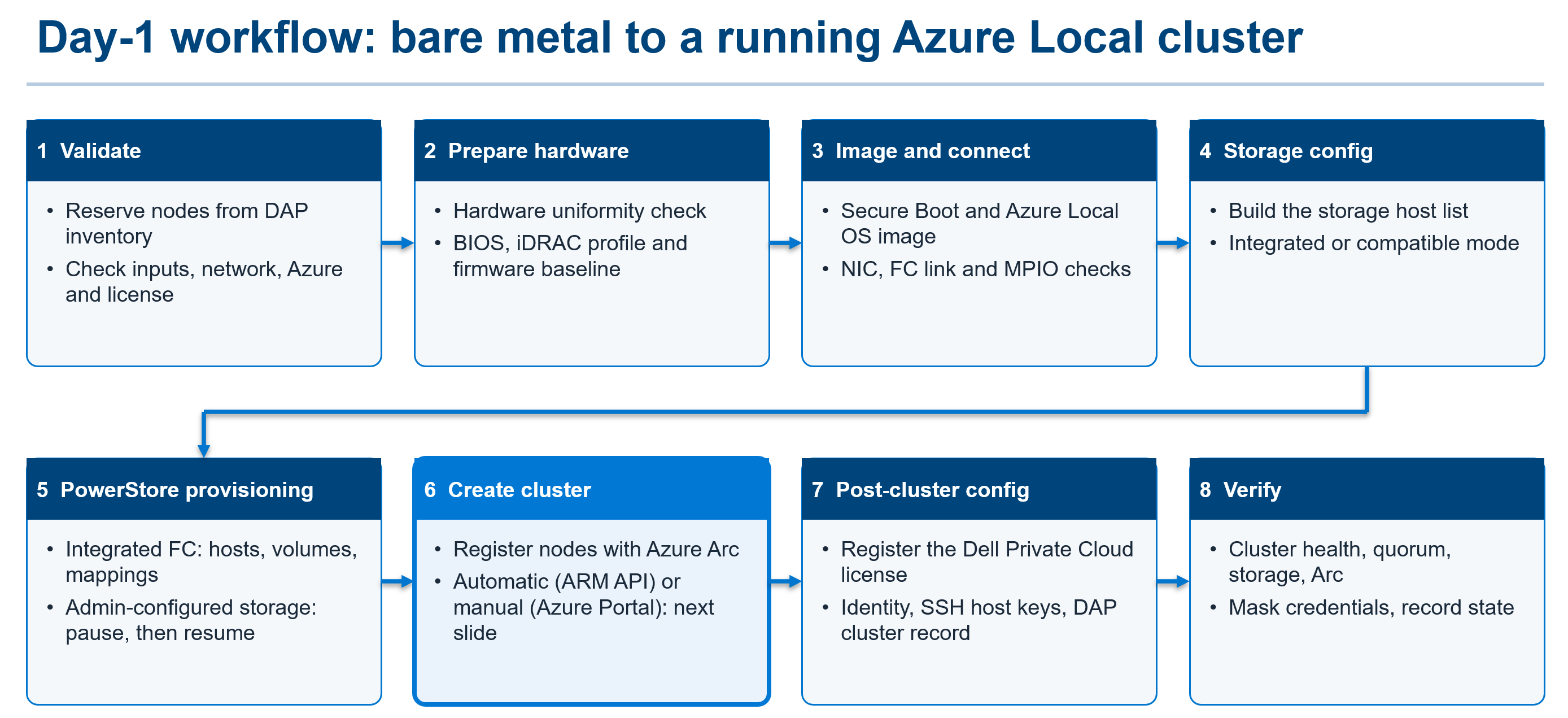
With the upcoming 2.0.0.0 release of Dell Private Cloud for Microsoft Azure Local, storage provisioning will be fully automated for integrated Fibre Channel storage via Dell PowerStore. If you choose not to integrate Dell PowerStore with the Dell Automation Platform, that’s perfectly fine! The blueprint will pause, allow you to perform the necessary storage tasks (such as host provisioning, volume creation, and volume mapping), and then allow you to resume the blueprint. That is called the compatible storage mode.
Here’s a look at what is supported in terms of storage modes for this solution:
| Storage Mode | Storage Protocol | Notes |
| Integrated | Fibre Channel | Fully automated storage provisioning, volume creation, and host mapping. Automated end-to-end deployment of Azure Local instance supported. |
| Compatible | Fibre Channel | Manual steps required on Dell PowerStore array for storage provisioning. Automated end-to-end deployment of Azure Local instance supported. |
| Compatible | iSCSI | Manual steps required on Dell PowerStore array for storage provisioning. Manual deployment of Azure Local instance via Azure Portal required. |
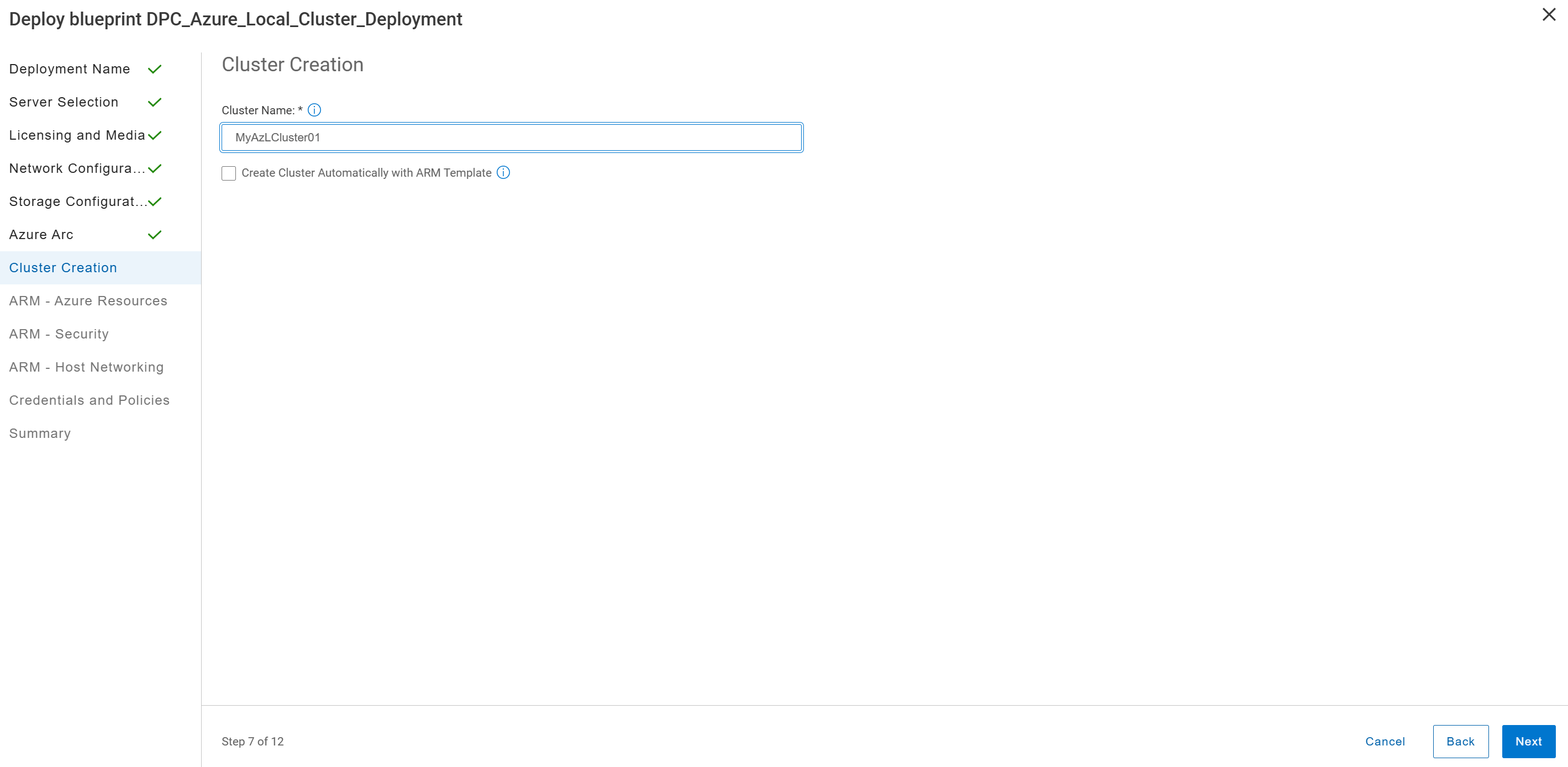
Automated Azure Local instance creation via Azure Resource Manager (ARM) template deployment is the preferred option when using the Dell Automation Platform Day 1 Deployment blueprint. When this option is selected, you will be asked to provide additional required input pertaining to the Azure Local deployment which is then used to create an azuredeploy.parameters.json based on the create-cluster-san azuredeploy.json quickstart ARM template.
Azure Local side: what the deployment looks like
Whether DAP drives it or you do it by hand through the Azure Portal, the Azure Local deployment has some disaggregated-specific choices. From the portal deployment guide for disaggregated:
- Basics: choose the Standard cluster option and the Storage Area Network storage option.
- Configuration: starting with 2610, the wizard has an iSCSI configuration step. Select Enable, then the authentication type and iSCSI network details. Don’t enable iSCSI by hand on 2610 nodes before deployment; manual setup is only for earlier versions.
- Networking: SAN-based storage is the only storage option, and you choose whether to group or separate management and compute traffic. If you share adapters, select the iSCSI adapters already configured for the cluster network.
- Advanced: pick the cloud witness storage account, then select the two LUNs for infrastructure and cluster performance history. Workload LUNs come after deployment.
Post-deployment: MPIO, CSVs, and storage paths
Microsoft’s external storage guide has vendor-specific MPIO settings. Starting with Azure Local 2604, MPIO is installed and configured by default whether it is required or not. For the most part, the default MPIO settings align with the Dell PowerStore best practice recommendations. However, there are some specific MPIO timers that require changing. For the Dell Automation Platform blueprint, these settings are applied automatically as part of running the blueprint.
# Verify PowerStore is registered with the Microsoft DSMGet-MSDSMSupportedHWVendorId ProductId-------- ---------3PARdata VVDellEMC PowerStorePURE FlashArrayNETAPP LUN C-ModeHITACHI OPEN-VDellEMC PowerStore# Verify the default load balance policyGet-MSDSMGlobalDefaultLoadBalancePolicyRR# Verify PowerStore-recommended MPIO settings (reboot required to change)Get-MPIOSettingPathVerificationState : EnabledPathVerificationPeriod : 30PDORemovePeriod : 20RetryCount : 3RetryInterval : 1UseCustomPathRecoveryTime : EnabledCustomPathRecoveryTime : 10DiskTimeoutValue : 30
Once verified, present your workload LUNs, bring them online and format them NTFS on one node, add them to the cluster, and convert them to CSVs:
Get-ClusterAvailableDisk | Add-ClusterDiskGet-ClusterResource | Where-Object { $_.ResourceType -eq 'Physical Disk' -and $_.OwnerGroup -eq 'Available Storage' } | Add-ClusterSharedVolume
Finally, add each CSV as a storage path in the portal (Settings > Storage path > + Add storage path) so you can place Azure Local VMs on it. See steps 8 thru 10 on the enable external storage guide for detailed directions on initializing disks, creating volumes, and creating an Azure storage path.
Validating with PowerShell
This is the part I always run regardless of which tool deployed the cluster. Every command below comes from the Microsoft docs linked in earlier sections above.
# 1. MPIO is installedGet-WindowsOptionalFeature -Online -FeatureName MultipathIO | ` Select-Object FeatureName, State, RestartNeeded# 2. PowerStore is registered with MSDSMGet-MSDSMSupportedHw# 3. Initiators (WWPNs for FC, IQNs for iSCSI)Get-InitiatorPort | Where-Object ConnectionType -in 'Fibre Channel','iSCSI' | ` Select-Object NodeAddress, PortAddress, ConnectionType | Format-Table -AutoSize# 4. SAN disks: run on every node and compare UniqueIdUpdate-HostStorageCacheGet-Disk | Where-Object { $_.BusType -in 'Fibre Channel','iSCSI' } | ` Select-Object Number, FriendlyName, Size, SerialNumber, UniqueId, OperationalStatus | ` Format-Table -AutoSize# 5. Path count per MPIO diskmpclaim -s -d# 6. Cluster storage validationTest-Cluster -Include Storage# 7. CSVs online and ownedGet-ClusterSharedVolume | Select-Object Name, State, OwnerNode | Format-Table -AutoSize
Disk numbers can differ between nodes, so always compare UniqueId, not disk number.
Get-InitiatorPort | Where-Object ConnectionType -in 'Fibre Channel','iSCSI' | ` Select-Object NodeAddress, PortAddress, ConnectionType | Format-Table -AutoSizeNodeAddress PortAddress ConnectionType----------- ----------- --------------200070b7e4223c51 100070b7e4223c51 Fibre Channel200070b7e4223c52 100070b7e4223c52 Fibre Channel#################Get-Disk | Where-Object { $_.BusType -in 'Fibre Channel','iSCSI' } | ` Select-Object Number, FriendlyName, Size, SerialNumber, UniqueId, OperationalStatus | ` Format-Table -AutoSizeNumber FriendlyName Size SerialNumber UniqueId OperationalStatus------ ------------ ---- ------------ -------- ----------------- 1 DellEMC PowerStore 279172874240 8LC0643 68CCF0980029296BB068699CA563756D Online 2 DellEMC PowerStore 42949672960 8LC0643 68CCF0980084372D47A8E3CB29AA9749 Online#################mpclaim -s -dMPIO Disk System Disk LB Policy DSM Name-------------------------------------------------------------------------------MPIO Disk1 Disk 2 RRWS Microsoft DSMMPIO Disk0 Disk 1 RRWS Microsoft DSM ################# Get-ClusterSharedVolume | Select-Object Name, State, OwnerNode | Format-Table -AutoSizeName State OwnerNode---- ----- ---------Infrastructure_1 Online MyAzLNode01
Gotchas
- Don’t initialize the infrastructure and performance history LUNs. Deployment expects RAW disks.
- Don’t enable iSCSI by hand on 2610. The Azure Local deployment wizard (via Azure Portal) does it now.
- iSCSI needs dedicated adapters. Microsoft supports only dedicated adapters for iSCSI, with no default gateway on the iSCSI NICs.
- LUNs go to every node, with consistent LUN IDs. No partial presentation, and the array must support SCSI-3 Persistent Reservations or
Test-Clusterwill complain. - SAN LUNs show up offline by default. The 2604+ MPIO default
NewDiskPolicyisOfflineShared. That’s expected. - NTFS for SAN CSVs. Format with a 64K allocation unit, per Microsoft’s guide.
- Check your PowerStore version. 3.0+ for Azure Local support and DAP onboarding, but 4.0.0+ if you want DAP to handle PowerStore updates.
Wrapping up
Disaggregated Azure Local finally lets you size compute and storage separately, and Dell Private Cloud with Dell Automation Platform aims to make the PowerEdge + PowerStore + Azure Local stack feel as simple to stand up as an HCI cluster.
Questions or a different experience in your environment? Drop a comment, or find me on Microsoft Q&A for Azure Local.
References
- Overview of disaggregated deployments for Azure Local
- Network reference patterns for disaggregated deployments
- Install the OS for disaggregated deployments
- Deploy Azure Local via the Azure portal for disaggregated deployments
- Deploy a disaggregated rack aware cluster with SAN storage (preview)
- Enable external storage on Azure Local
- Supported SAN solutions on Azure Local
- Dell Private Cloud solution brief
- Dell Private Cloud Tech Book: Architectural overview
- Dell Automation Platform: Onboard PowerStore assets
- Dell blog: Dell and Microsoft reimagine sovereign private cloud
Disclaimer: This post was created with assistance from my BlueFlashyLights Grok Bot and manually reviewed by myself before posting. The bot uses my past posts as reference to help create new posts in my voice with the goal of sharing technical content more quickly as it relates to my field of work.

