Chris Mahon works as a Senior Principal Engineer for the Azure Stack product group at Dell Technologies. As part of the engineering team, he assists with hardware validation, proof-of-concept demos, documentation for various product guides, field enablement of resources for Support and Deploy Services (SDS), Consulting, and escalation support. In addition to that, the engineering team provides technical whitepapers and best practices pertaining to the Dell Technologies Azure Stack products.
When it comes to Dell’s Integrated System for Microsoft Azure Stack Hub, I often hear from customers that the Patch and Update process is confusing and difficult. This leads to customers to being up to date with their Microsoft Azure Stack Hub software updates and hotfixes while falling behind on their OEM hardware-vendor-provided updates. To help with this issue, I will attempt to break down, demystify, and provide clarity to the patch and update process for the Dell Integrated System for Microsoft Azure Stack Hub 14G.
To fully understand the Dell Patch and Update process for Azure Stack Hub, we must first identify all of the pieces involved in the process and how they are used. Here are the various packages and tools involved in this process:
Customer Toolkit zip file
Just Enough Administration (JEA) Registration zip file
Network ATC is an intent-based approach to network configuration that was introduced with Azure Stack HCI OS (21H2) and is the preferred network configuration method to use when deploying your Azure Stack HCI cluster.
Network ATC assists with the following:
Reduce overall network configuration deployment time, complexity, and reduce human errors due to erroneous input
Deploy the latest Microsoft validated and supported network configuration best practices
Ensure configuration consistency across the nodes in the cluster
Eliminate configuration drift with periodic checks every 15 minutes
Whether you are wanting to deploy a Non-Converged, Fully Converged, or Switchless network topology for your Azure Stack HCI cluster, Network ATC can be leveraged.
The following sections will help guide you through an Azure Stack HCI network deployment leveraging Network ATC while covering some of the parameters and configuration overrides you may need depending on your environment.
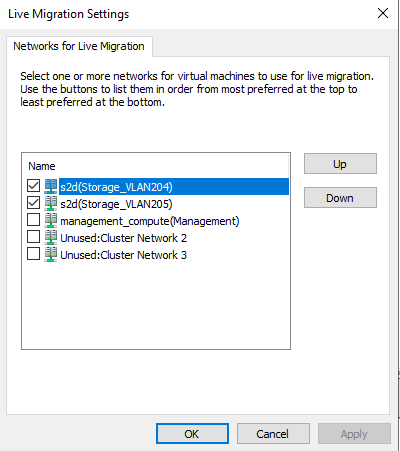
Recently encountered the following error while attempting to perform live migration of VMs in my cluster:
Live migration of 'Virtual Machine vm-base-A0640R33C02N01-001' failed.
Failed to get the network address for the destination node 'A0640R33C02N02': A cluster network is not available for this operation. (0x000013AB).
For some reason, valid cluster networks were excluded for migration. I was able to validate this running the following command:
To modify the virtual machine live migration exclude networks or migration network order list, you can use either Set-VMMigrationNetwork cmdlet or the Failover Cluster Manager MMC snap-in. As a best practice, the networks that should be enabled for live migration are typically the non-routable private SMB networks:
Once the live migration networks have been set according, you can re-validate this on the host by running the earlier code block:
This script will download all current Microsoft virtual machine extensions from the marketplace. It also downloads Ubuntu Server and Windows Server images as well. Once all have been downloaded, it will compare versions and prompt you to remove older versions if desired.
The goal of this post to help fill in the gaps from the Microsoft Azure Stack User Documentation on deploying a secured service fabric cluster using the Azure Stack Developer Kit (ASDK). The same steps could easily be used on the Azure Stack integrated system.