Azure Stack – Identifying and Deleting False Alerts in 1.1807.0.76

Issue:ย When updating from 1.1805.7.57 (1805 hotfix) you may encounter an issue with Alerts displayed that are not actually true. The alerts, upon further investigation, appear to be false, but they cannot be closed from the portal.
Version Impacted:ย 1.1807.0.76 (only seems to be present when upgrading from 1.1805.7.57)
Microsoft Response:ย Being unable to clear the alerts after updating to 1807 is currently a known issue and fixes are under investigation. There is no resolution at this time.

The two alerts I received specifically were the following:

  • Azure Stack update stopped with errors – Critical – Capacity
  • Activation Required – Warning – Azure Bridge

vRealize Orchestrator – Resolving the ${message} blue screen issue

Here’s an issue that frustrated me for a while until I was able to finally resolve it. If you’re here reading this too, I feel your pain… Hopefully this helps you out as well!

I’m deploying vRealize Orchestrator (vRO) 7.3 in our lab for testing as I continue to build our cloud environment. To help detail the issue we have been having, I’ll provide a quick overview of our environment.

VMware, XtremIO, and Native Multipathing

vmware-nmp-1

So, you have your XtremIO installed, configured, and ready for use. Now what? If you’re like most I’ve worked with, you have probably already started creating volumes, presented them to your ESXi hosts, and have created datastores. Often times, I am finding myself working with customers who express some performance concerns post-migration to XtremIO and it is usually due to a commonly overlooked item in the EMC Host Configuration Guide.

The most overlooked item is in regards to VMware Native Multipathing. If you’re familiar with the EMC VNX arrays, you probably noticed that the VNX devices presented in vCenter defaulted to a Round Robin path policy. This is because VMware had a rule in place that identified CX/VNX arrays to accommodate for ALUA (active/active) and would assign that policy (VMW_SATP_ALUA_CX) to those devices which set them to Round Robin instead of Fixed Path.

With the XtremIO, there is no such in rule in place. By default, the XtremIO devices will identify with policy VMW_SATP_DEFAULT_AA and I have noticed that the path selection policy is set to Fixed (Default).

To overcome this, it is recommended to create a new Storage Array Type policy per the EMC XtremIO Host Configuration Guide.

esxcli storage nmp satp rule add -c tpgs_off -e “XtremIO
Active/Active” -M XtremApp -P VMW_PSP_RR -O iops=1 -s
VMW_SATP_DEFAULT_AA -t vendor -V XtremIO

This creates a custom rule for XtremIO devices, sets the path selection policy to Round Robin, and then sets the path switching frequency from a default of 1000 I/O packets to 1. This ensures optimal distribution and availability of load between I/O paths to the XtremIO storage.

As you may see in the Host Configuration Guide, it is noted below:

Note: With NMP in vSphere versions below 5.5, clustering is not supported when the
path policy is set to Round Robin. For details, see vSphere MSCS Setup Limitations in
the Setup for Failover Clustering and Microsoft Cluster Service guide for ESXi
5.0 or ESXi/ESX 4.x. In vSphere 5.5, Round Robin PSP (PSP_RR) support is introduced.
For details, see MSCS support enhancements in vSphere 5.5 (VMware KB 2052238).

Note: Use this method when no XtremIO volume is presented to the host. XtremIO volumes already presented to the host are not affected by this procedure (unless they are unmapped from the host).

If you find yourself in the situation above with volumes already mapped and datastores created, you can simply storage vMotion your VMs over to new XtremIO volume datastores with this new rule in place.

VMWARE MIGRATION OF VMS AND RDMS FROM VNX TO XTREMIO โ€“ PART 3

To continue with part 3 of this series, I will quickly recap where we left off.

  • We have a source VNX and a target XtremIO that we need to migrate boot LUNs and VMware RDMs to
  • SANcopy enabler installed on source VNX
  • VNX SP ports are zoned to XtremIO target brick (in my case, I am using brick 4 of a 4-brick cluster)
  • We have identified our source LUNs and created our target XtremIO volumes

For our BOOT from SAN LUNs, we do not need these to be incremental SANcopy sessions as they are only 30GB in size each. To cutover the boot LUN, we will do the following:

  1. Place the host maintenance mode to evacuate any/all VMs on the host
  2. Shutdown the host
  3. Start the SANcopy session
  4. Once complete, remove the source volume from the VNX host storage group
  5. Map the boot volume to the VMware host as HLU 0 on the XtremIO
  6. Adjust host boot from SAN policy (in my case, I am working with UCS hosts)
  7. Boot host and verify successful boot
  8. Exit maintenance mode

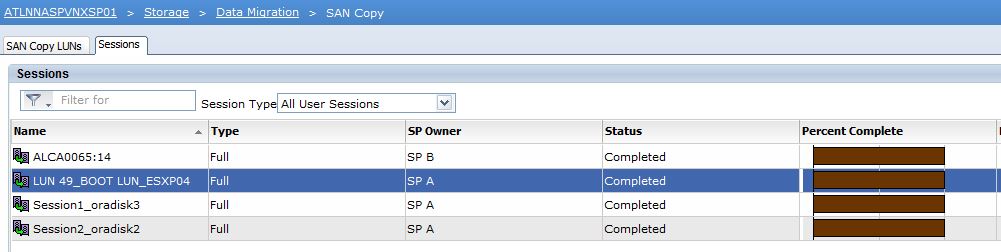
The SANcopy session can be created in either the VNX GUI or CLI using naviseccli. You will need to know the following: source LUN name (or ID), source LUN GUID (wwn), target XtremIO FC ports, target volume mapped HLU # to the VNX initiator group.

sancopy-xtremio-3

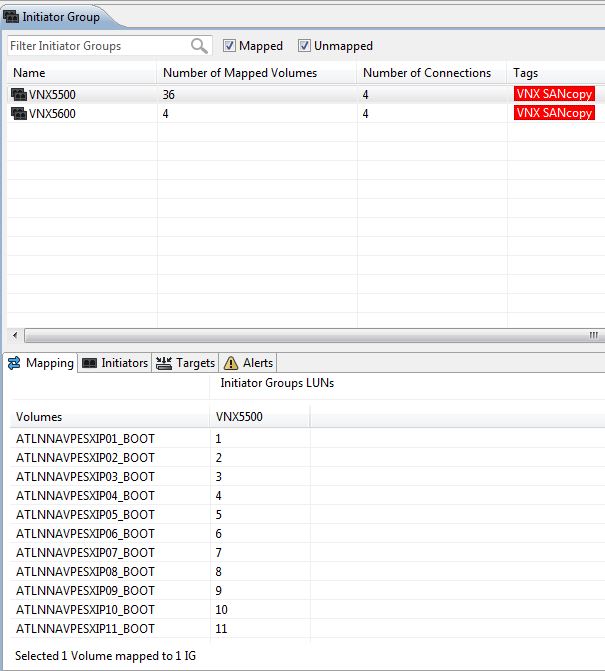
As you see here, I mapped host 1’s target boot volume as HLU 1 to the VNX initiator group. (Host 2 mapped as HLU 2, etc.) I decided to create my SANcopy sessions in the CLI as I have about 40 host boot LUN sessions to create.

naviseccli -h 10.10.10.10 -User sysadmin -Password sysadmin -Scope 0 sancopy -create -name “LUN 47_BOOT LUN_ESXP10” -srcwwn 60:06:01:60:BB:B4:30:00:61:28:DD:1D:82:F0:E1:11 -fibre -destportwwn 51:4f:0c:50:62:07:af:30 10 -throttle 8 -verify -o

This syntax breaks down like this:

naviseccli -h (SP IP) -User <username> -Password <password> -Scope 0 sancopy -create <session name> -srcwwn <source LUN GUID / WWN> -fibre -destportwwn <XtremIO target FC WWN> <destination LUN number (HLU)> -throttle <0 – 10> -verify -o

While scripting out my session create commands, I am alternating between SCs and ports on the XtremIO to balance the load out.

sancopy-xtremio-3-1

As for our incremental sessions, we need to create a Reserved LUN Pool that the incremental sessions will use. For that we will follow EMC best practices and create our incremental sessions accordingly. More to come on that soon!

VMware Migration of VMs and RDMs from VNX to XtremIO – Part 2

sancopy-xtremio

In continuing with part 2 of this series, I’m going to discuss zoning requirements for SANcopy on the XtremIO. To recap before we begin, I have a VMware environment that I am migrating from VNX to XtremIO. Most of this environment can be migrated via storage vMotion to the XtremIO. However, there are quite a few of VMs that have physical mode RDMs that need to be migrated via SANcopy. We chose SANcopy over Open Migrator because these following reasons:

  • SANcopy enabler is installed on the source VNX
  • SANcopy will require one outage to shutdown the server on time of cutover
  • SANcopy is array-based and would not impact the host CPU
  • Open Migrator is only supported for Microsoft Windows Server
  • Open Migrator requires three reboots to migrate (one to attach filter driver to source and target drives, two to actually cutover one drives are in sync, and three to uninstall the software)

First things first; we need to zone our target XtremIO to the source VNX. With following EMC Best Practices, we will create 1-to-1 zones on each Fabric for SP A and SP B ports to two controllers.

Fabric A

Zones Source VNX Target XtremIO
Zone 1 SP A-port 5 X1-SC1-FC1
Zone 2 SP A-port 5 X1-SC2-FC1
Zone 3 SP B-port 5 X1-SC1-FC1
Zone 4 SP B-port 5 X1-SC2-FC1
* SP A-port 5 and SP B-port 5 are connected to Fabric A in my environment*

Fabric B

Zones Source VNX Target XtremIO
Zone 1 SP A-port 4 X1-SC1-FC2
Zone 2 SP A-port 4 X1-SC2-FC2
Zone 3 SP B-port 4 X1-SC1-FC2
Zone 4 SP B-port 4 X1-SC2-FC2
* SP A-port 4 and SP B-port 4 are connected to Fabric B in my environment*

You should end up with zones that look something like this:

zone name XIO3136_X1_SC1_FC2_VNX5500_SPA_P4 vsan 200
member fcalias XIO3136_X1_SC1_FC2
member fcalias VNX_SPA_P4
exit
zone name XIO3136_X1_SC2_FC2_VNX5500_SPA_P4 vsan 200
member fcalias XIO3136_X1_SC2_FC2
member fcalias VNX_SPA_P4
exit
zone name XIO3136_X1_SC1_FC2_VNX5500_SPB_P4 vsan 200
member fcalias XIO3136_X1_SC1_FC2
member fcalias VNX_SPB_P4
exit
zone name XIO3136_X1_SC2_FC2_VNX5500_SPB_P4 vsan 200
member fcalias XIO3136_X1_SC2_FC2
member fcalias VNX_SPB_P4
exit

Yes… yes… I know I used the acronym XIO (XIO is not XtremIO) for my fcalias and zone names. Sorry! ๐Ÿ™‚

You can choose to split this across multiple bricks if you have more than one brick in your XtremIO cluster. Even though, you really only need to zone one storage controller at a minimum, we are choosing to zone two controllers and will split the SANcopy sessions across the two controllers to balance out the load.

Once we have our zoning in place, we should now see the VNX visible from the XtremIO. You can view this in the CLI by issuing the show-discovered-initiators-connectivity command or in the GUI by creating a new initiator group for the VNX and selecting the drop down to show the SP A and SP B WWPNs. Create a new initiator group on the XtremIO for the VNX and map the target volumes for the SANcopy session to this initiator group. Take note of the HLU you assigned to the volume mapping and also the target FC ports on the XtremIO you zoned to the VNX.

xmcli (admin)> show-discovered-initiators-connectivity
Discovered Initiator List:
Cluster-Name Index Port-Type Port-Address Num-Of-Conn-Targets
ATLNNASPXTREMIO01 1 fc 50:06:01:61:08:60:10:60 2
ATLNNASPXTREMIO01 1 fc 50:06:01:62:08:60:10:60 2
ATLNNASPXTREMIO01 1 fc 50:06:01:64:3e:a0:5a:ed 2
ATLNNASPXTREMIO01 1 fc 50:06:01:65:3e:a0:5a:ed 2
ATLNNASPXTREMIO01 1 fc 50:06:01:69:08:60:10:60 2
ATLNNASPXTREMIO01 1 fc 50:06:01:6a:08:60:10:60 2
ATLNNASPXTREMIO01 1 fc 50:06:01:6c:3e:a0:5a:ed 2
ATLNNASPXTREMIO01 1 fc 50:06:01:6d:3e:a0:5a:ed 2

sancopy-xtremio-2.jpg

The next part of this guide will discuss what is needed on the VNX source before SANcopy sessions can be created. We are going to talk about reserved LUN pool, requirements around that, and creating the SANcopy session itself. Stay tuned!